

Create a contact form for members and visitors
A global survey, shown in a custom page of the top menu, makes a contact form: members and visitors send a message, and the administrator receives it as a notification.
Before you start
You need Survey 2.13.2 and Advanced Survey 1.13.1 or later, and the Custom Pages module.
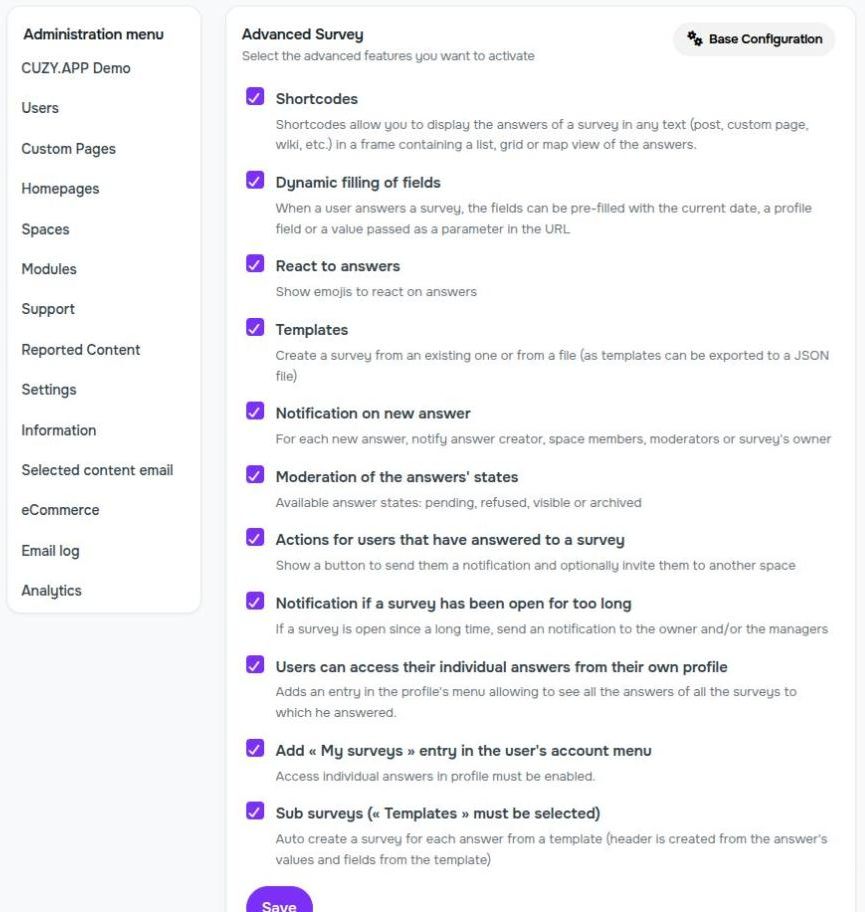
In the configuration of the Advanced Survey module, tick "Shortcodes" and "Notification on new answer":
For visitors to send a message, guest access must be allowed in Administration > Users > Settings ("Allow visitors limited access to content without an account").
1. Create a global survey
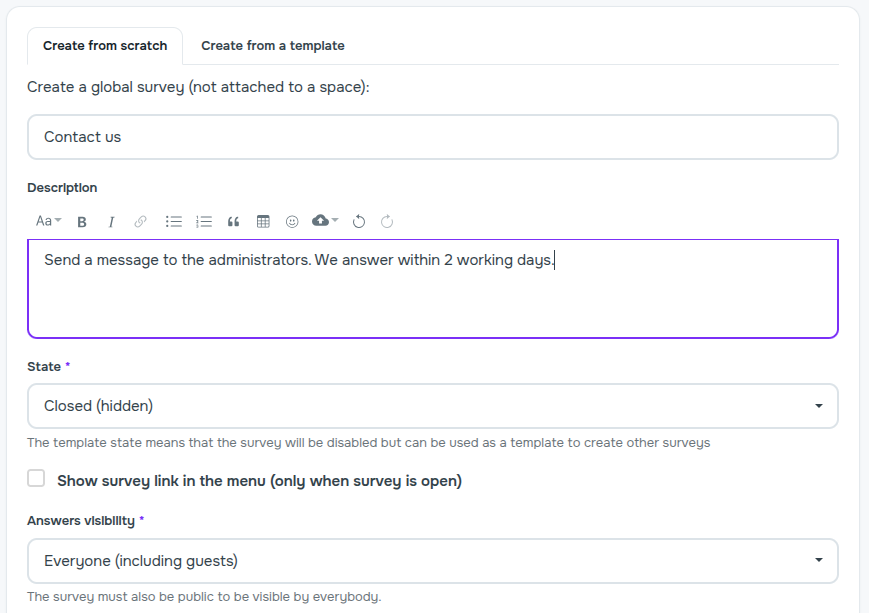
Create the survey in the global surveys (Administration > Global surveys, or the "Surveys" item of the top menu), not in a space:
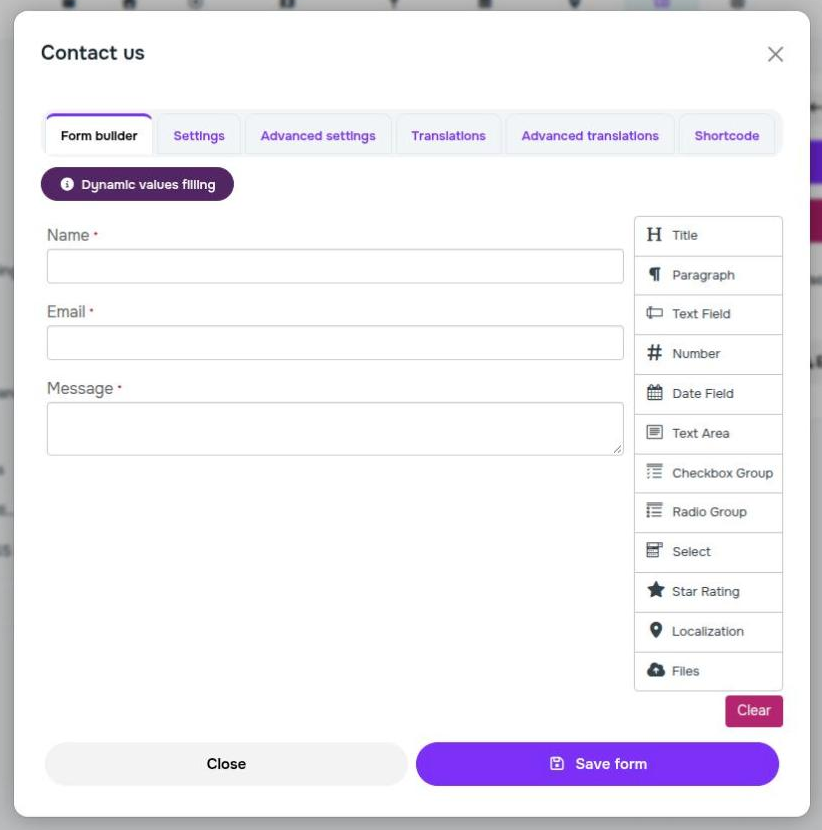
Add the fields of the form. Keep a text field for the email address: visitors receive the confirmation at this address.
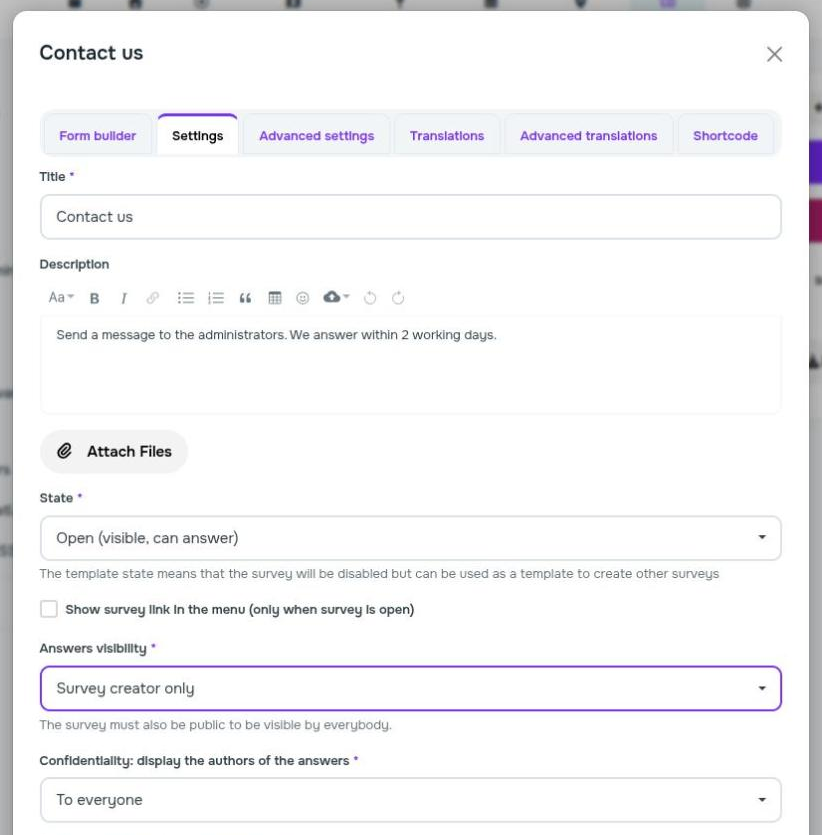
In the settings, set the state to "Open (visible, can answer)" and the answers visibility to "Survey creator only", so that the messages stay private:
Make the survey public with "Change to "Public"" in its "..." menu, so that visitors can see it. If the menu shows "Change to "Private"" instead, the survey is already public:
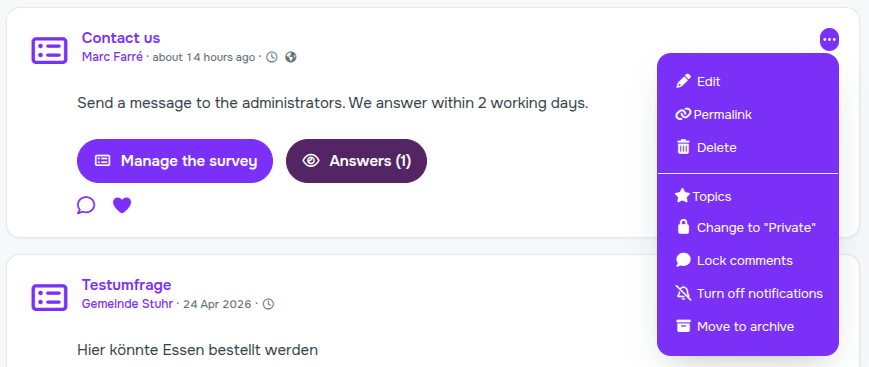
2. Notify the administrator and the sender
In the advanced settings, tick "Answer creator" and "Survey owner" in "People to notify for each new answer". The survey owner is the administrator who created the survey.
You can also tick "Hide in the streams", so that the survey doesn't appear in the dashboard stream: it stays in the list of global surveys.
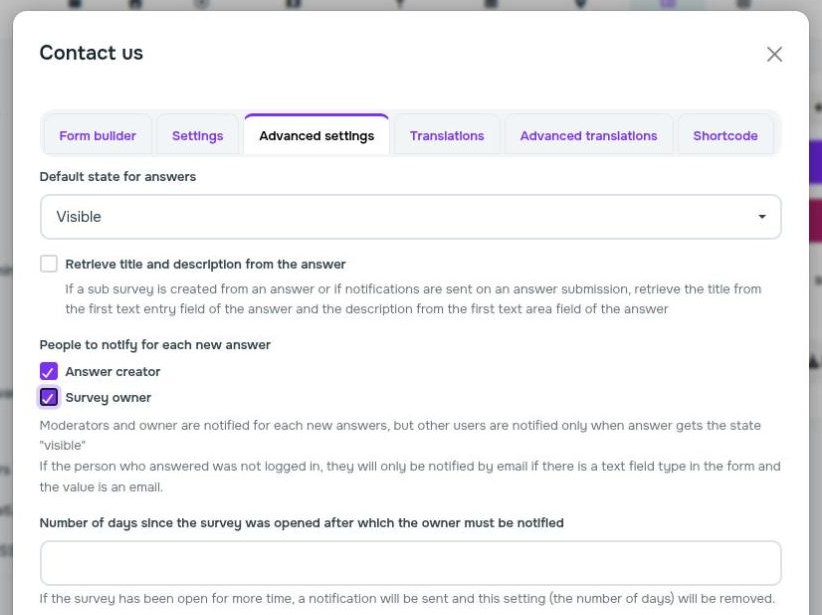
3. Show the form in a custom page
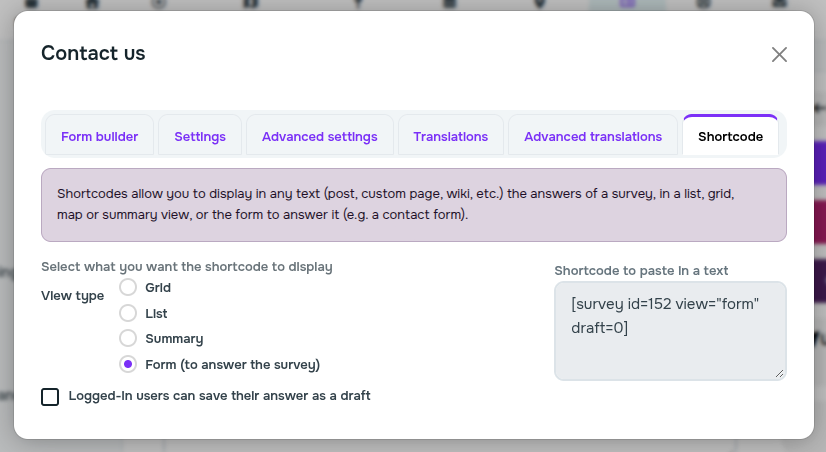
In the "Shortcode" tab, choose the "Form (to answer the survey)" view type, untick "Logged-in users can save their answer as a draft", and copy the shortcode:
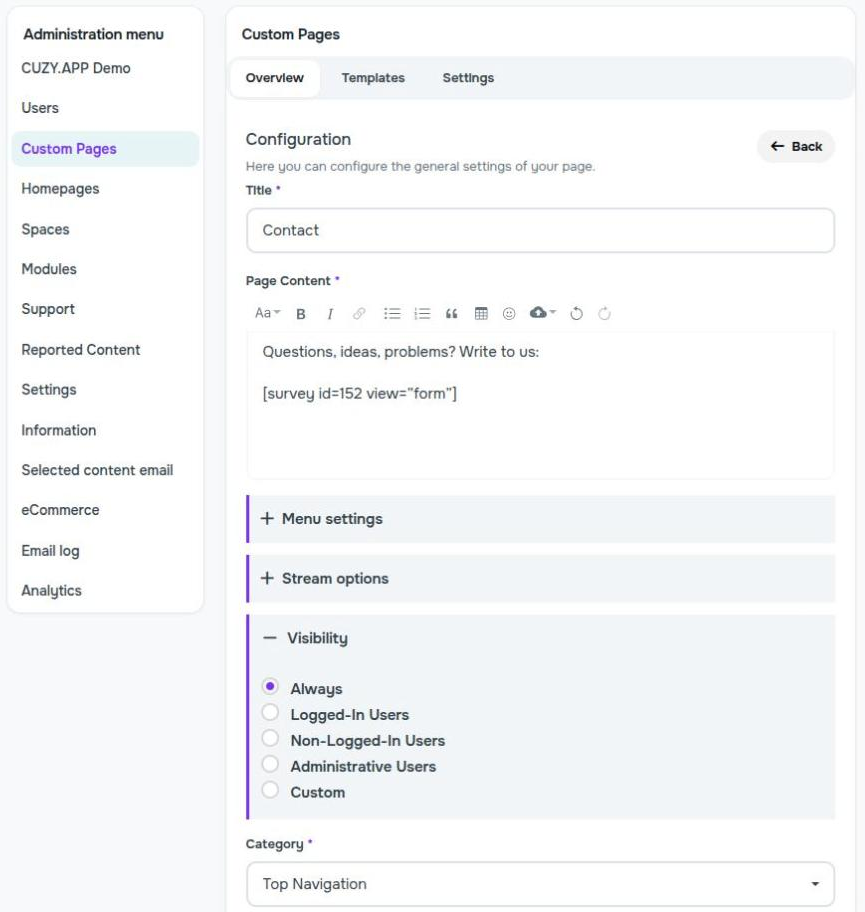
In Administration > Custom Pages, click the "+" button of the "Top Navigation" section and choose the "MarkDown" type. Paste the shortcode in the content, choose an icon in the "Menu settings" panel and the "Always" visibility in the "Visibility" panel:
Result
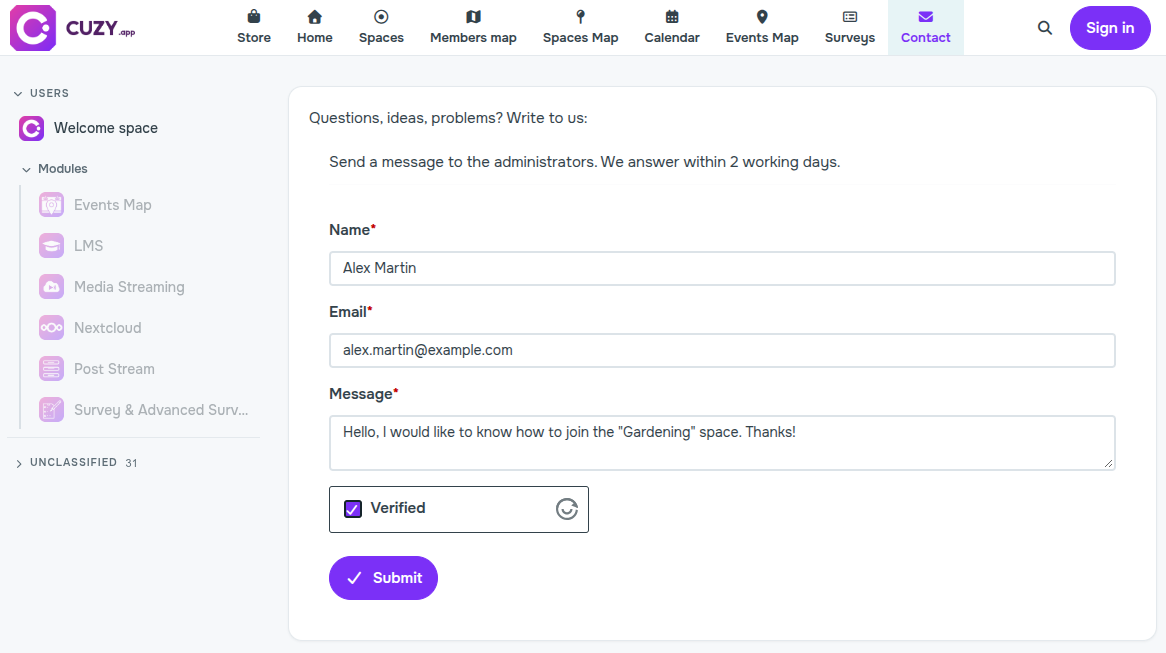
Visitors and members find the contact form in the top menu. Visitors also tick "I'm not a robot":
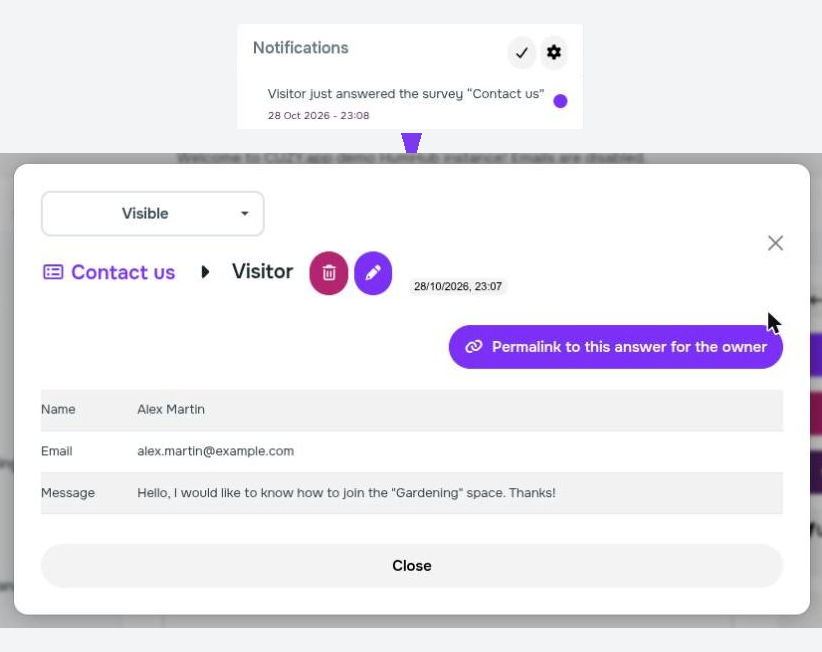
When a message is sent, the administrator receives a notification with its content:
Read next
- Show survey answers anywhere with shortcodes
- Pre-fill survey fields from the profile or the URL
- Survey templates: reuse, export and import surveys
- Sub-surveys: create a survey for each answer
- Customize survey answer lists with JavaScript and CSS
- Advanced Survey module: features and price
- Survey module: features and price
- New versions of the modules by email: the CUZY newsletter, a few times a year