

Enroll students in HumHub courses: open, invite, approve
Each course decides how students get in: they enroll themselves, ask and wait for approval, or are enrolled by an instructor. This page explains the three ways and the bulk import.
1. The three enrollment types
Set in the course settings (the Space's default is chosen in the Space settings):
| Type | What a member does | What the instructor does |
|---|---|---|
| Open (anyone can enroll) | clicks Enroll Now on the course page and starts at once | nothing |
| Requires approval | clicks Request Access, with an optional message, and is notified of the decision | approves or declines the request |
| Invite only | sees "This course is by invitation only" | enrolls the students (section 3) |
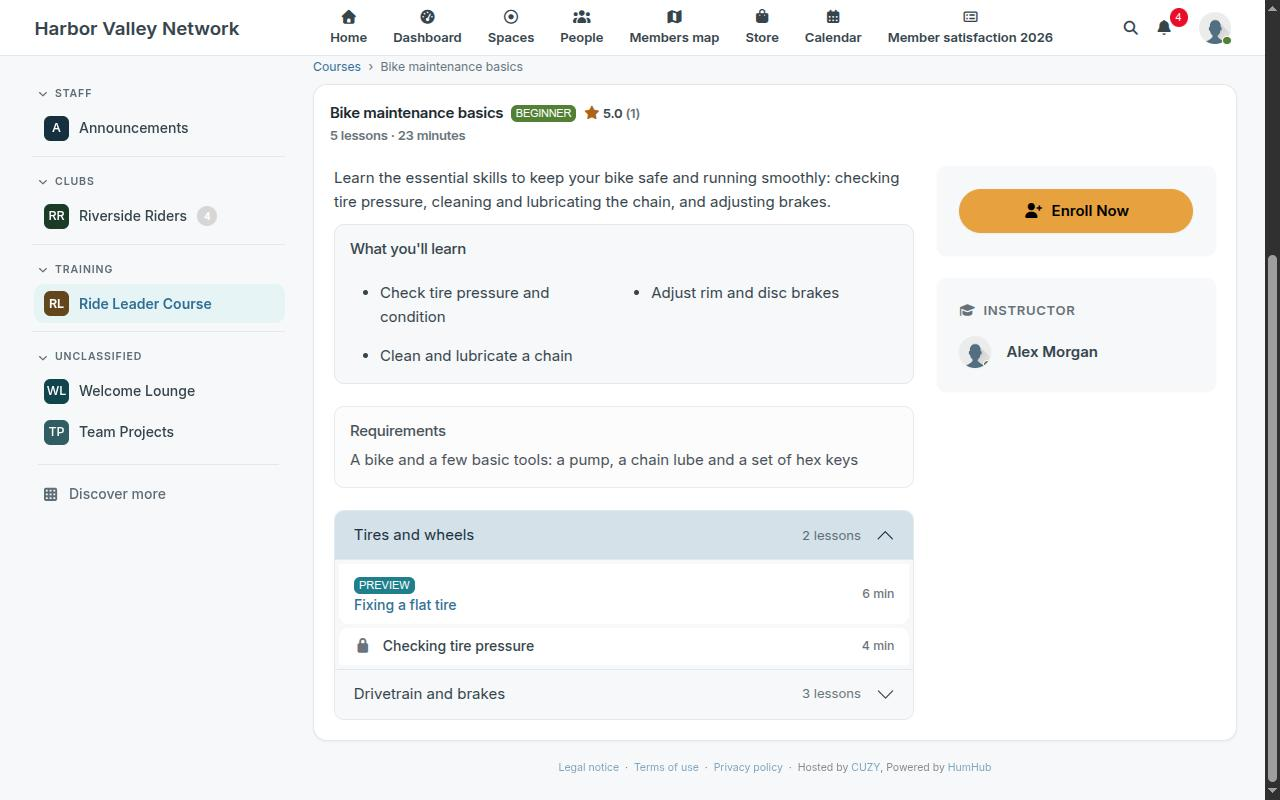
Requests appear in the Pending Requests of the Instructor Dashboard and in the Students tab of the course; instructors are notified of each new request.
Max Students limits a course to a number of students (0 means no limit). It applies to invite-only and approval-based courses; when the course is full, approving a request is refused. Students an instructor enrolls directly are always added.
2. What the student sees
A student who enrolled finds the course under My Learning (in the Space sidebar and the lesson player): every course with its progress ring, and the certificates to download. Unenroll on the course page leaves a course. Progress is kept, so a student who enrolls again continues where they left off.
3. Enroll students yourself
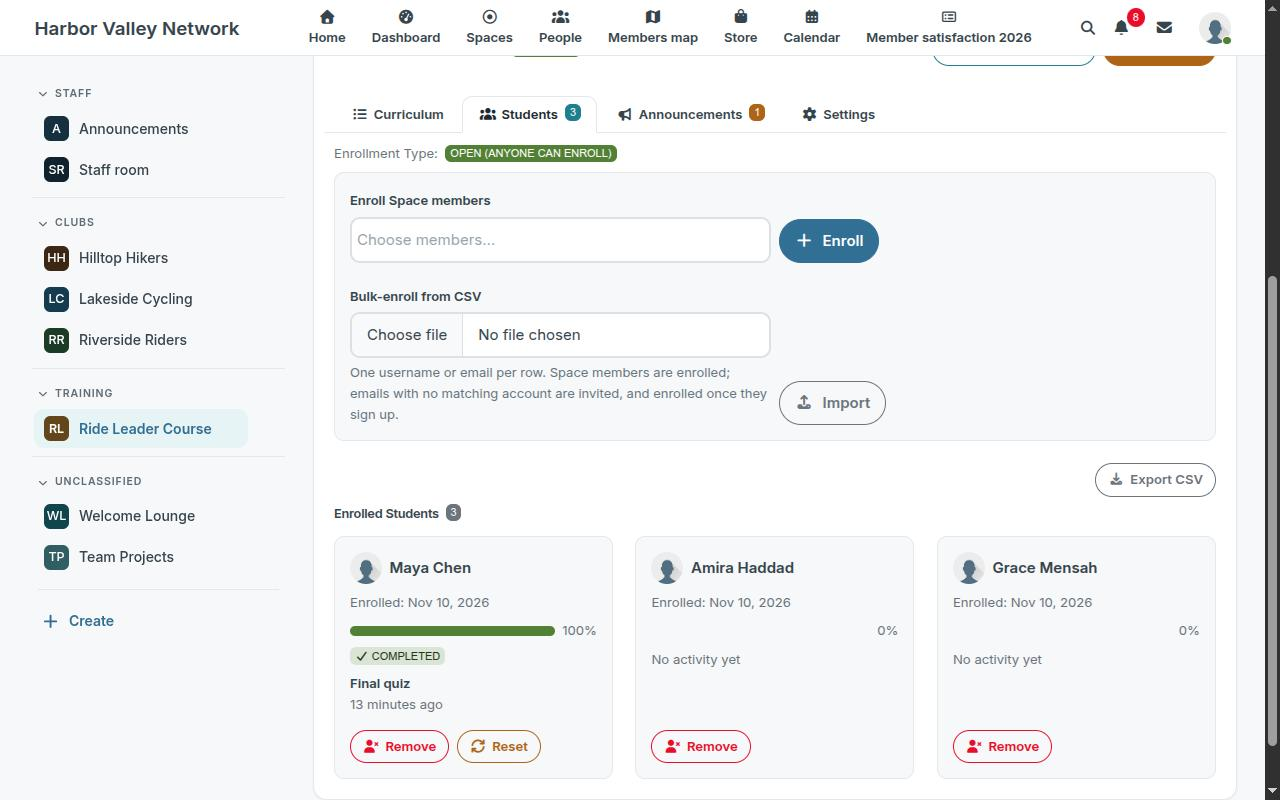
In the Students tab of the course:
- Enroll Space members: pick one or more members of the Space.
- Bulk-enroll from CSV: a file with one username or email per row. Members of the Space are enrolled at once. An email that has no account receives HumHub's invitation to join the Space, and the person is enrolled in the course as soon as they join, whatever the enrollment type and the student limit. Inviting by email needs the Space's invitation permission and the platform's setting that lets members invite by email; without them, those rows are skipped.
4. Remove a student or start over
From the student list of the Students tab, an instructor can remove a student from the course, or Reset completion of the student to let them take the course again from the start.
Read next
- Set up the LMS module in a HumHub Space
- Build a course with sections and lessons in HumHub
- Add a quiz to a HumHub course lesson
- Course completion certificates in HumHub
- Track course progress and students in HumHub
- LMS — Learning Management System module: features and price
- New versions of the modules by email: the CUZY newsletter, a few times a year