

Track course progress and students in HumHub
Instructors follow each course from the Instructor Dashboard and the Students tab, talk to students through announcements and lesson comments, and read their ratings.
1. The Instructor Dashboard
Open the Courses tab of the Space, then Instructor Dashboard. It shows, for the Space:
- Total Courses, Total Enrolled, Completions and the average progress of each course;
- the Pending Requests waiting for a decision, across all courses (enrollment);
- the list of courses with their status (draft, scheduled, published, archived), their enrolled and completed students and average progress and, under More, Duplicate and Delete.
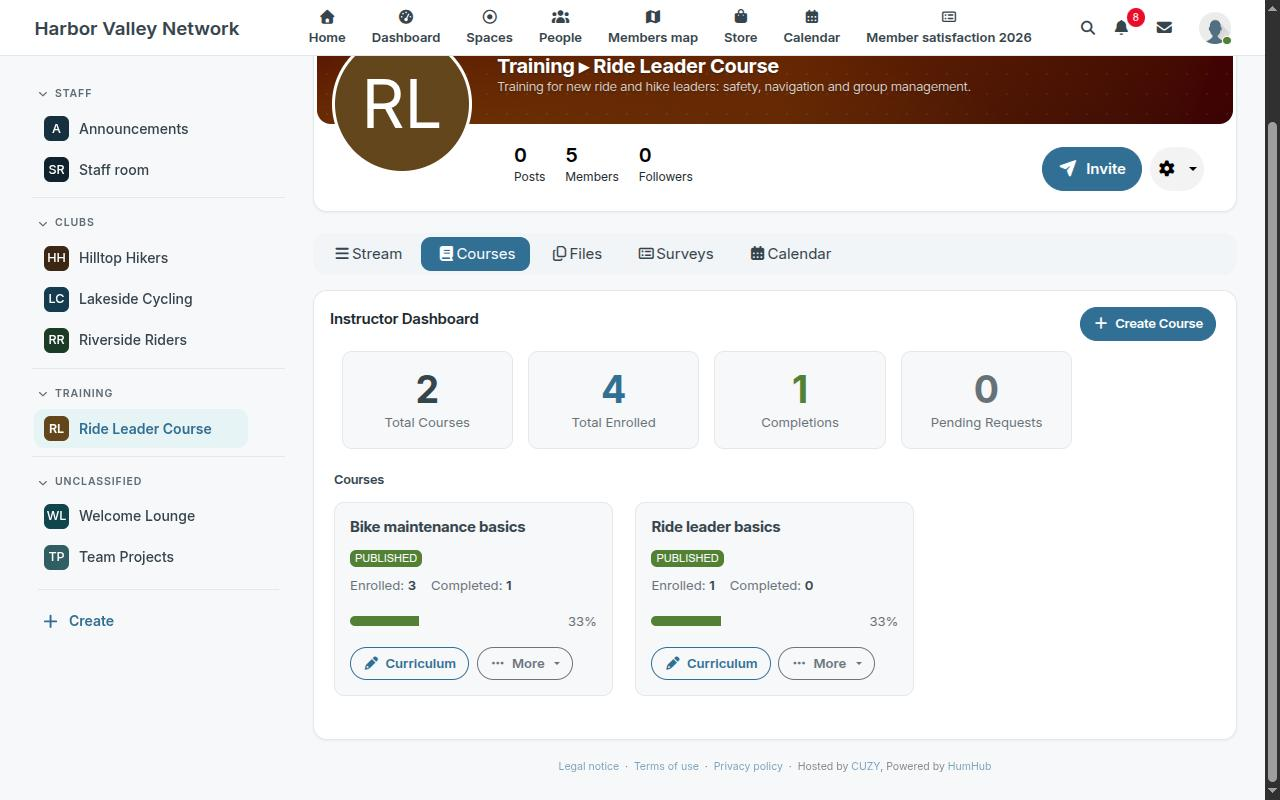
Deleting a course is permanent: its lessons, quizzes, students' progress and certificates go with it. The confirmation says how many students have started it.
2. The Students tab of a course
The roster of the course: each student with their progress, completion and last activity. From there an instructor enrolls members, imports a CSV file, removes a student, or resets a student's completion.
Export CSV downloads the roster with progress, for a report or a spreadsheet. The email column is included only for an instructor who may see members' emails on the platform (a user administrator); for the others it is left out.
3. Announcements
The Announcements tab posts a message to the course: every enrolled student is notified and finds it on the course page. Announcements can be edited or deleted later.
4. Lesson comments
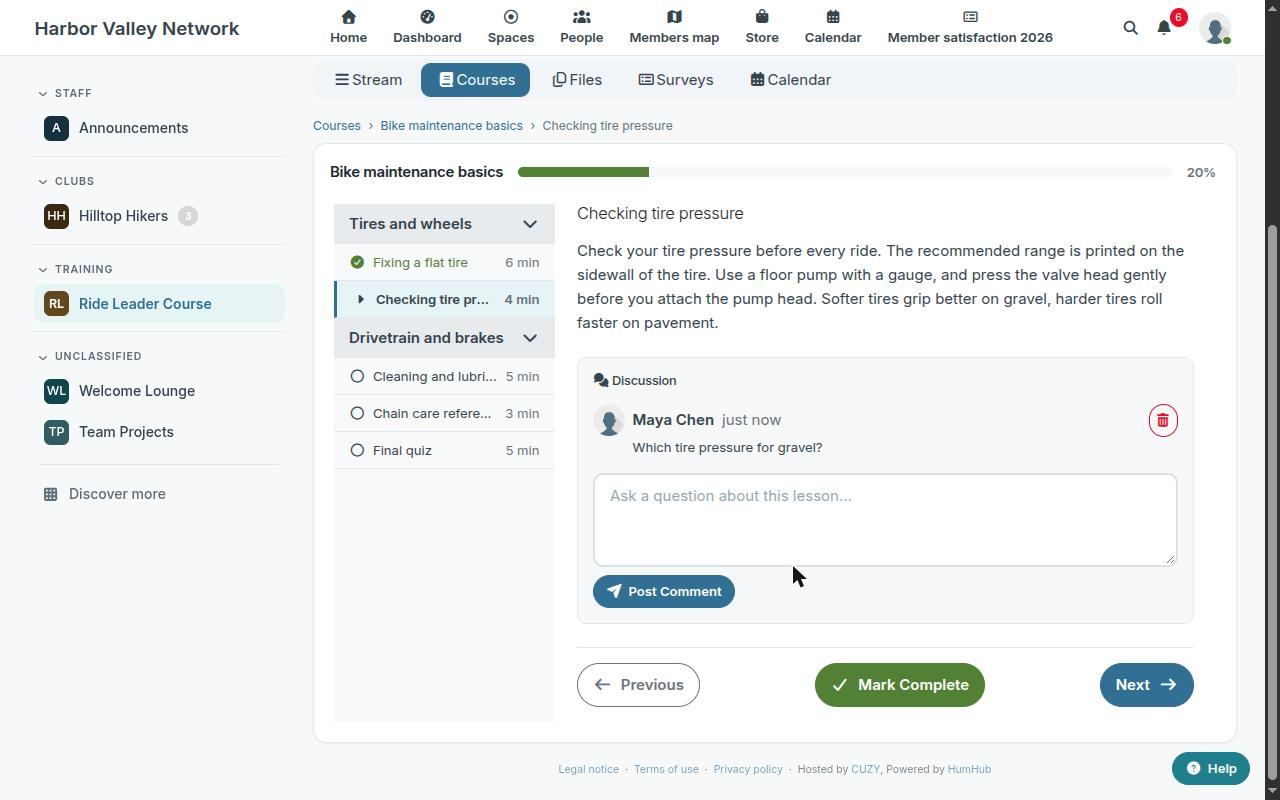
When the course allows it, each lesson ends with a discussion where students ask questions. Every instructor of the Space is notified of a new comment, with a link to the lesson, so they can answer there. Students can also reach the instructor through Need help? in the lesson player, which opens a private message when the Mail module is installed.
5. Ratings
Enrolled students can rate a course from 1 to 5 stars, with an optional comment, and change their rating later. The average and the number of ratings appear on the course cards of the catalog. Ratings can be turned off for the platform or for one Space (getting started); they are hidden, not deleted.
Read next
- Set up the LMS module in a HumHub Space
- Build a course with sections and lessons in HumHub
- Enroll students in HumHub courses: open, invite, approve
- Add a quiz to a HumHub course lesson
- Course completion certificates in HumHub
- LMS — Learning Management System module: features and price
- New versions of the modules by email: the CUZY newsletter, a few times a year