

Deactivate inactive HumHub accounts automatically
The first step of a cleanup is to deactivate the accounts of members who no longer log in, after warning them by email. A deactivated member can come back: logging in again reactivates the account.
1. Enable the deactivation
In the settings of the module, open the "Deactivation of user accounts" panel and check "Enable automated deactivation of user accounts":
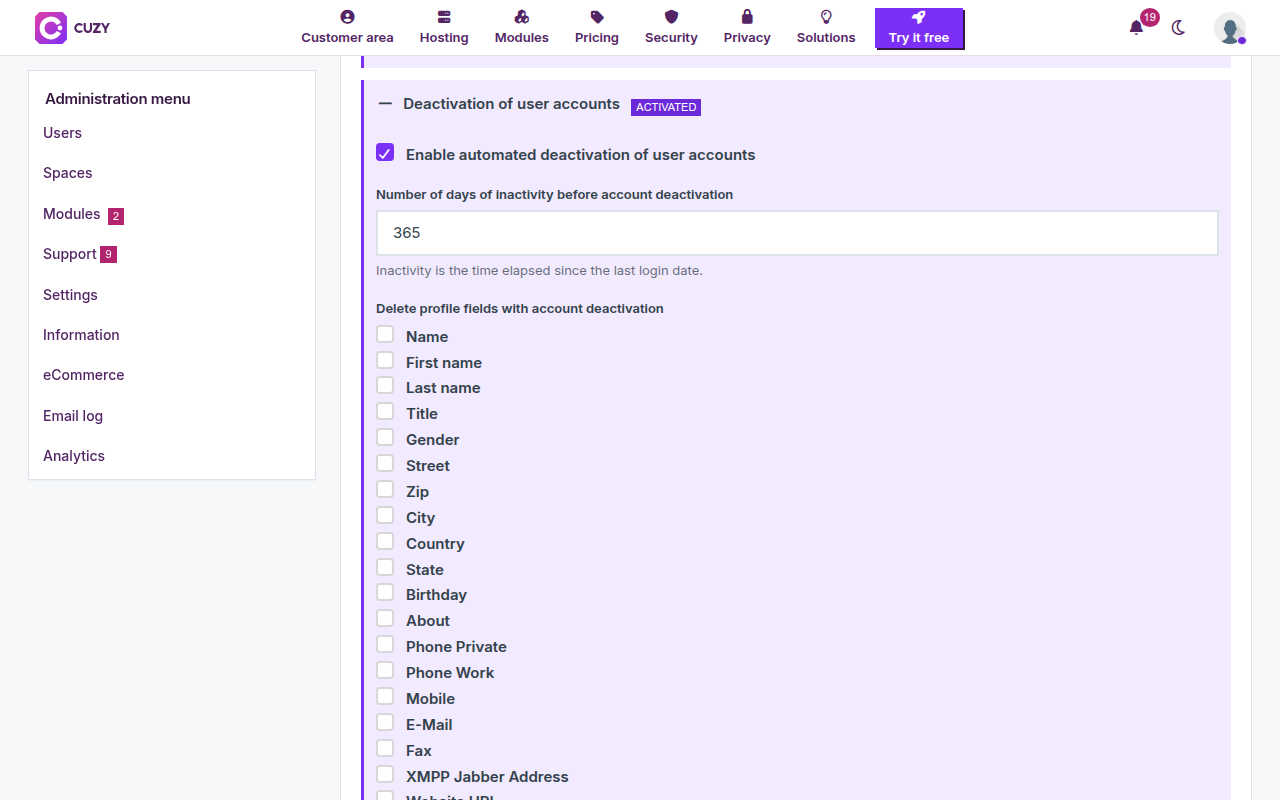
- Number of days of inactivity before account deactivation: 365 by default, counted from the last login (or from the creation of the account for a member who never logged in).
- Delete profile fields with account deactivation: tick the profile fields to empty when the account is deactivated (street, phone numbers, birthday…). The list is the profile fields of your HumHub. Nothing is ticked by default.
Save at the bottom of the page.
2. Warn the member by email first
Open the two panels above and enable the notification, then the reminder:
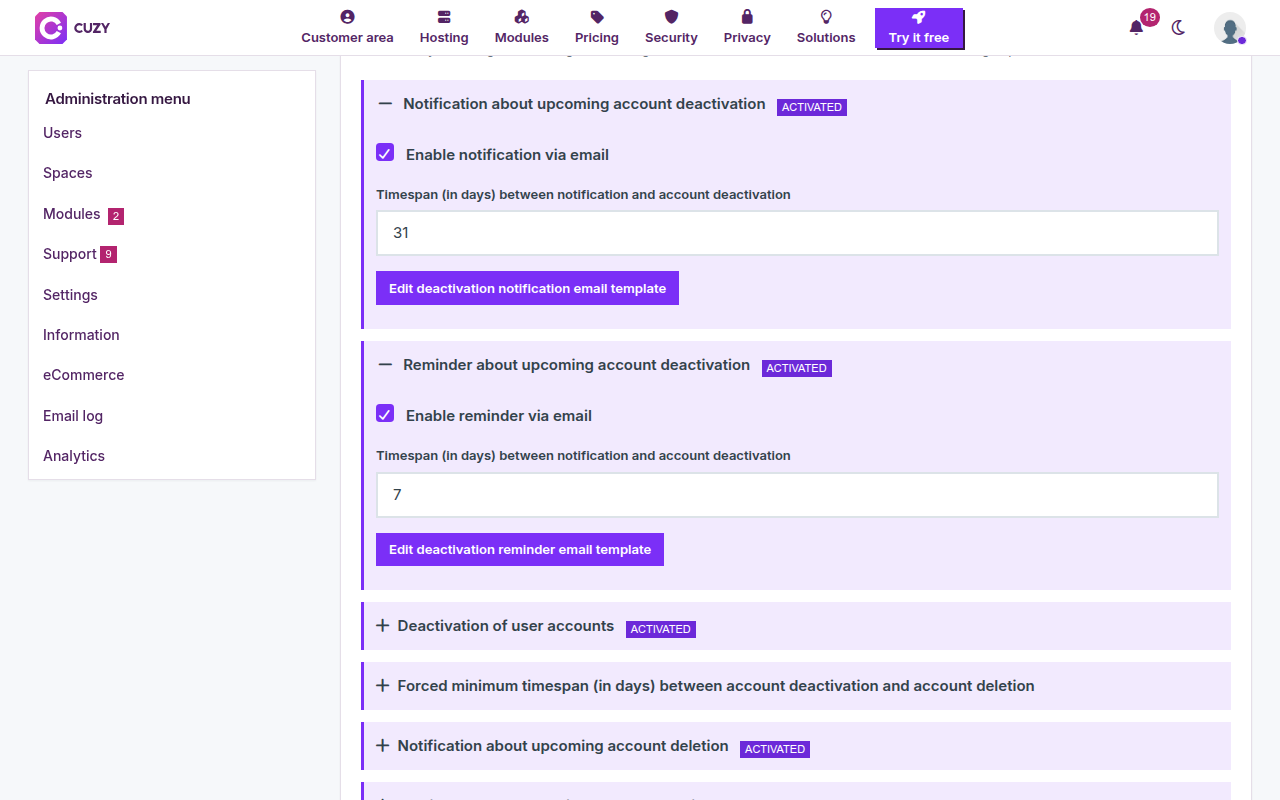
- Notification about upcoming account deactivation: the timespan is the number of days between the email and the deactivation, 31 by default. The email gives the member the date of the deactivation.
- Reminder about upcoming account deactivation: 7 days by default, the same way. The reminder requires the notification to be enabled.
With the default values, a member whose inactivity exceeds the deactivation delay plus the notification timespan (365 + 31 days) receives the notification, the reminder 24 days later, and the account is deactivated 31 days after the notification, 7 days after the reminder. Without the emails, the account is deactivated as soon as the inactivity exceeds 365 days.
3. What happens to a deactivated member
- The member receives the deactivation email; when the deletion is enabled too, that email gives the date of the deletion.
- The account is deactivated, as if an administrator had done it: the member can no longer log in, but their content stays in place and the account is still listed in the user administration.
- The member can come back: a login reactivates the account at once and restarts the count of inactivity. Only an account deactivated by the module is reactivated this way, not one deactivated by an administrator.
The next step is deleting the accounts that stay deactivated; before that, check who is concerned on the Cleanup tab.
Read next
- Set up User Cleanup for inactive HumHub accounts
- Delete inactive HumHub accounts after deactivation
- Customize the emails sent to inactive members
- Check and run the queued cleanup actions
- User Cleanup module: features and price
- New versions of the modules by email: the CUZY newsletter, a few times a year