

Set up User Cleanup for inactive HumHub accounts
User Cleanup chains up to six actions on the accounts of members who have not logged in for a chosen number of days: three emails, deactivation, two more emails, deletion. This page shows where everything is before you switch anything on.
1. Open the settings of the module
Go to Administration → Modules, find User Cleanup in the list of active modules and click Configure. The page lists the six actions, each with its own panel and an "activated" or "disabled" badge:
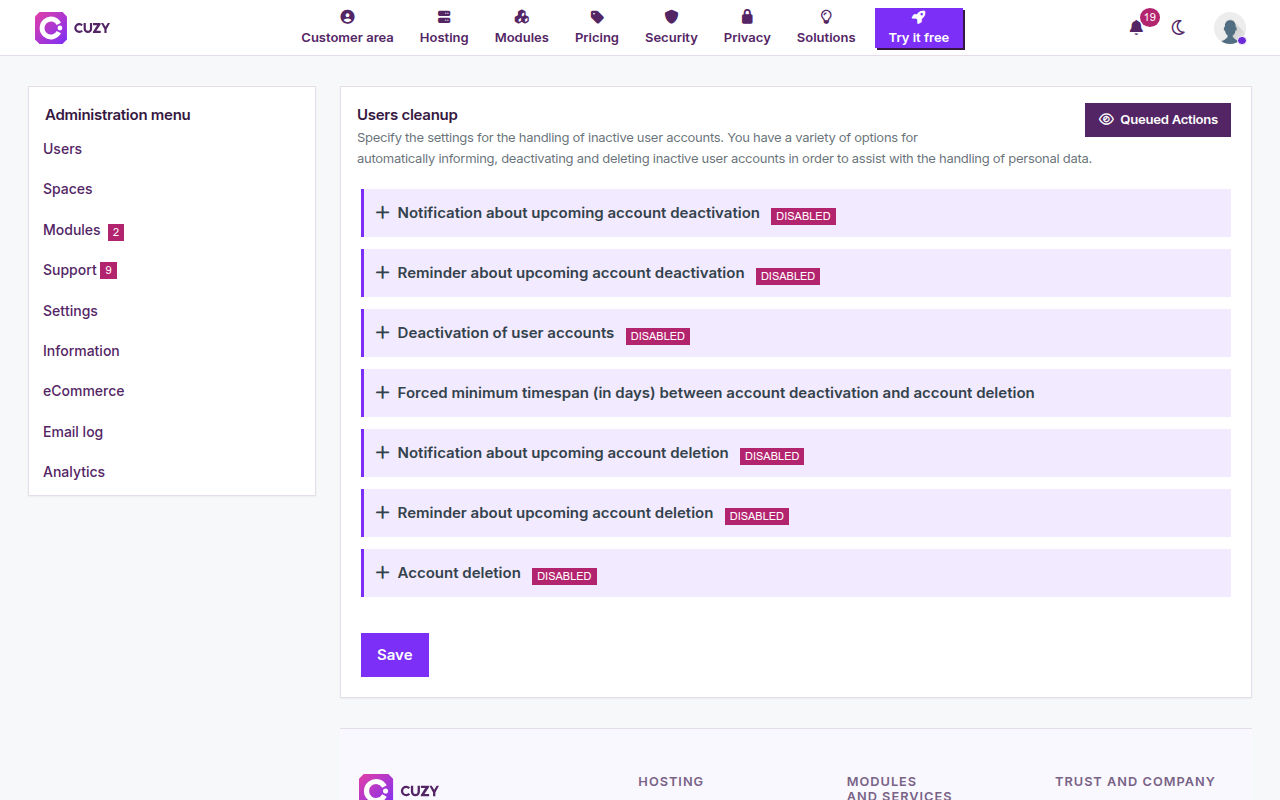
Everything is off after installation. Save is at the bottom of the page and applies to every panel at once.
2. The six actions, in order
The actions run in this order on each inactive account. Inactivity is the time elapsed since the member's last login; a member who never logged in is counted from the creation of the account.
- Notification about upcoming account deactivation: an email, sent once.
- Reminder about upcoming account deactivation: a second email, shortly before the deactivation.
- Deactivation of user accounts: the account is deactivated and the profile fields you chose are emptied; the member receives an email.
- Notification about upcoming account deletion: an email, sent once.
- Reminder about upcoming account deletion: a second email, shortly before the deletion.
- Account deletion: the account is deleted; the member receives a last email.
The emails depend on their action: a notification is only sent when the deactivation (or deletion) it announces is enabled, and a reminder only when its notification is. The settings page shows an alert when an email is enabled without the action it belongs to. Each panel of the settings page has a button to edit its email: see Email templates.
3. Who is never cleaned up
- Members of a group with administration rights (the "Administrator" group of HumHub, or any group marked as an administrator group) are skipped by every action.
- A member who logs in again leaves the process: the emails already sent are forgotten, and the sequence starts again from the new login date. A member deactivated by the module is reactivated automatically when they log in.
4. When the actions run
The enabled actions are queued by HumHub's daily job (6:00 PM by default on a HumHub installation) and run through the queue. The Cleanup tab of Administration → Users shows the next run and lets you start the actions by hand:
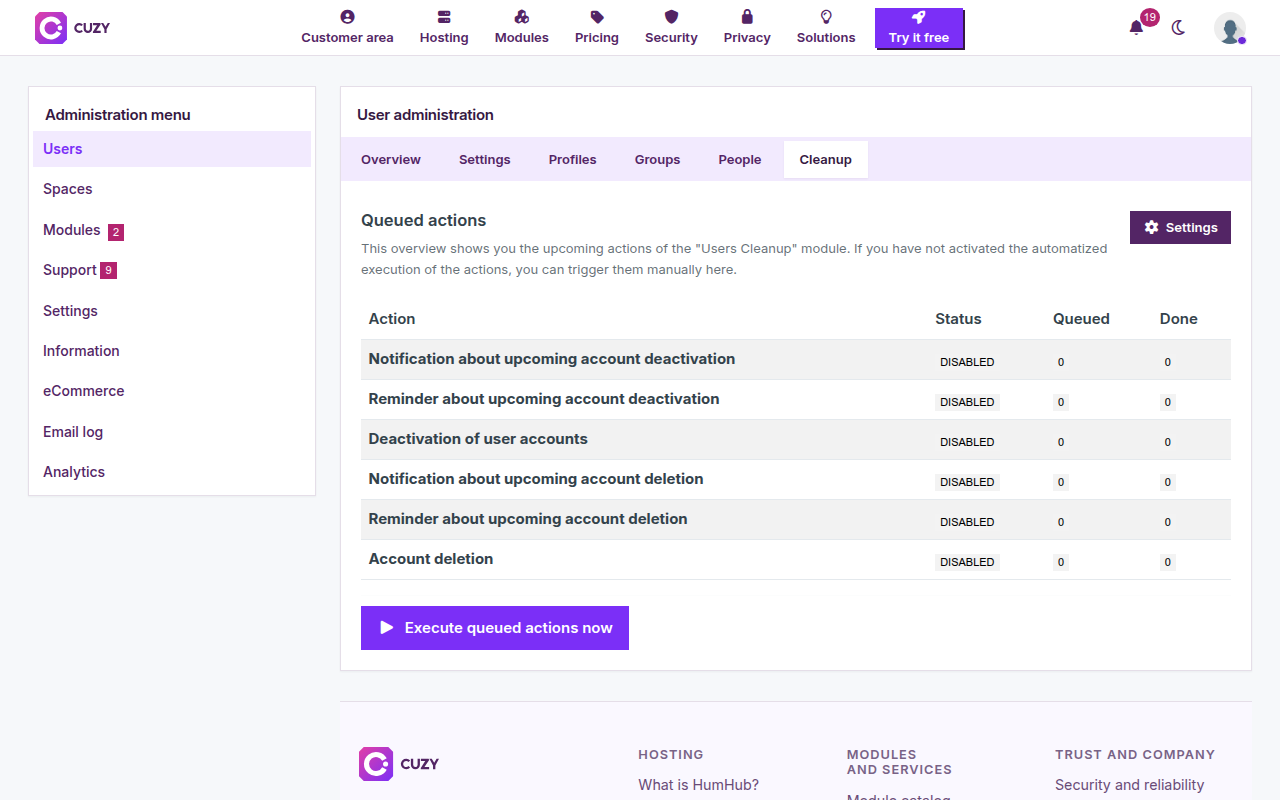
The settings page needs the "Manage settings" permission, the Cleanup tab the "Manage users" permission. Read next: deactivate inactive accounts, then delete them.
Read next
- Deactivate inactive HumHub accounts automatically
- Delete inactive HumHub accounts after deactivation
- Customize the emails sent to inactive members
- Check and run the queued cleanup actions
- User Cleanup module: features and price
- New versions of the modules by email: the CUZY newsletter, a few times a year